
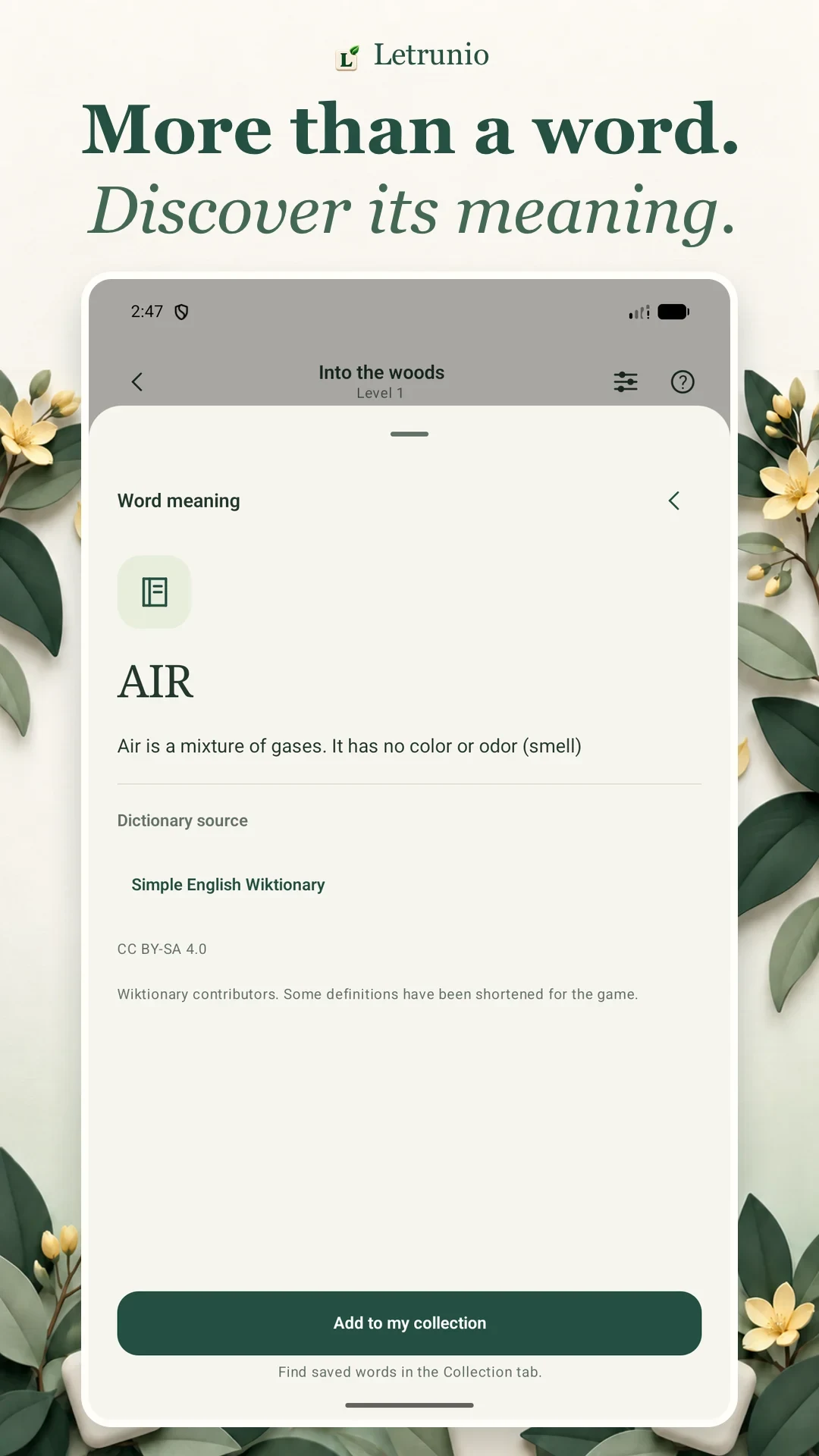
A word search with definitions lets you go beyond recognising a spelling. In Letrunio, tap a word you have found to read its meaning, then save it to your collection if you want to revisit it. You can also open meanings from the results screen after finishing a puzzle.
We built this flow for players who want to know what an unfamiliar word means as well as where it sits in the grid. You choose what to keep: save words that interest you, words you were unsure about, or words you want to read again.
Open a definition while you play
- Find and select one of the puzzle’s target words.
- Tap that found word’s card in the word list.
- Read the short definition in the meaning screen.
- Use the collection button if you want to save the word.
- Close the meaning screen and continue your puzzle.
You need to find the word before its card opens this way. An unsolved target is not a shortcut to a definition. The appearance of a found card and its meaning indicator help show which words you can revisit.
Explore words on the results screen
When the puzzle is complete, the results screen contains word cards. You can open a definition from a card or use its save button to add the word to your collection. If the full list does not fit on screen, scroll the results area to reach the other cards.
This is useful if you prefer to keep your attention on the grid until the end. Finish the puzzle, then return to the words you did not know. Saving an already collected word does not add a second copy.
Find a word in your collection
Open the Collection section to see the words you have saved. Use search to locate a particular word and tap its card to read the definition again. If the collection is empty, find a word in a puzzle and use the save button in its meaning screen first.
Finding a word and saving it are separate actions. You can complete a puzzle without adding anything to your collection. This keeps the collection personal: it contains the words you have chosen, rather than every word you have ever selected.
Use review cards to revisit meanings
The review option in your collection displays saved words as cards. First you see the word without the definition. Try to recall its meaning in your own words, then reveal the definition to check it.
After reading it, choose whether you remembered the meaning or want to revisit the word. At the end of the round, you can review the words you marked for another look. This is a personal review flow, rather than an exam score or a promise that you have mastered a word.
For example, after reading a new definition, think of a sentence in which you might use the word. When it returns on a review card, try to recall that sentence before showing the meaning. This gives you a context to think about as well as a spelling to recognise.
Where do the definitions come from?
The meaning screen displays the relevant dictionary source and licence information. Some definitions are shortened to make them easier to read in the game. Follow the source link if you want more context, other senses, or usage details. Opening an external dictionary page needs an internet connection.
Do definitions and collections work offline?
Definitions already stored on your device can be read offline, and you can use your collection as a guest. If you want cloud saving, link an account through the Account section using a supported sign-in method. Syncing between devices requires internet access and the same linked account; matching display names alone do not identify the same account.
Start with one word you want to keep
Choose an unfamiliar word from a puzzle you have just solved, open its meaning, and save it. Then find it again in Collection and try a review card. Learn more about Letrunio or get it from Google Play and the App Store.
Choose your next guide
- How to Play Word Search: A Beginner’s Guide
- Word Search Tips: Find Hidden Words with a Clear Strategy
Read this guide in Turkish: Letrunio’da Kelime Anlamları ve Koleksiyon Nasıl Kullanılır?.